
Microsoft SQL Server
RIGHT JOIN
In Microsoft SQL Server, the RIGHT JOIN clause is used to return all rows from the right (second) table and the matching rows from the left (first) table. If there is no match in the left table, the result will contain NULL for the columns from the left table. This is the opposite of LEFT JOIN and is useful when you need all the records from the right table, regardless of whether there is a match in the left table. For beginners, understanding how to use RIGHT JOIN helps you retrieve data from multiple tables when it's important to include all rows from one specific table, even if there are no related records in the other.
Below is a detailed explanation of how to use the RIGHT JOIN clause with examples and best practices.
1. Basic Syntax of RIGHT JOIN
The basic syntax of RIGHT JOIN is as follows:
SELECT table1.column1, table2.column2
FROM table1
RIGHT JOIN table2
ON table1.common_column = table2.common_column;
table1is the left table (will return only matching rows orNULL).table2is the right table (will return all rows).
Example:
SELECT Orders.OrderID, Customers.CustomerName
FROM Orders
RIGHT JOIN Customers ON Orders.CustomerID = Customers.CustomerID;
This query retrieves all customers, even those who haven’t placed any orders. If a customer hasn’t placed an order, NULL will appear in the OrderID column.
2. Handling NULL Values in RIGHT JOIN
When there is no match in the left table, the RIGHT JOIN will return NULL values for the columns of the left table.
SELECT Sales.SaleID, Products.ProductName
FROM Sales
RIGHT JOIN Products ON Sales.ProductID = Products.ProductID;
This query retrieves all products, including those that have never been sold, with NULL in the SaleID column for unsold products.
3. Using RIGHT JOIN with Multiple Tables
You can join more than two tables using multiple RIGHT JOIN clauses to combine data from multiple related tables.
SELECT Orders.OrderID, Customers.CustomerName, Products.ProductName
FROM Orders
RIGHT JOIN Customers ON Orders.CustomerID = Customers.CustomerID
RIGHT JOIN Products ON Orders.ProductID = Products.ProductID;
In this query, we retrieve all customers and the products they ordered. Even if a customer hasn’t placed any orders, they will still be included in the result set, with NULL values for order and product information.
4. Filtering Results with WHERE in RIGHT JOIN
You can use a WHERE clause to filter rows from the RIGHT JOIN results, for example, to find rows where no match was found in the left table.
SELECT Orders.OrderID, Customers.CustomerName
FROM Orders
RIGHT JOIN Customers ON Orders.CustomerID = Customers.CustomerID
WHERE Orders.OrderID IS NULL;
This query retrieves all customers who have not placed any orders by filtering for rows where OrderID is NULL.
5. Using RIGHT JOIN with Aggregates
You can use RIGHT JOIN along with aggregate functions like COUNT(), SUM(), etc., to summarize related data.
SELECT Products.ProductName, COUNT(Sales.SaleID) AS TotalSales
FROM Products
RIGHT JOIN Sales ON Products.ProductID = Sales.ProductID
GROUP BY Products.ProductName;
This query returns each product’s name along with the total number of sales, including products that have never been sold.
6. Best Practices for Using RIGHT JOIN
Use
RIGHT JOINWhen You Need All Rows from the Right Table –RIGHT JOINis useful when you want to include all records from the right table, regardless of whether there is a match in the left table.SELECT Sales.SaleID, Customers.CustomerName FROM Sales RIGHT JOIN Customers ON Sales.CustomerID = Customers.CustomerID;Handle
NULLValues Carefully – Be aware thatRIGHT JOINcan introduceNULLvalues for the columns of the left table when there is no matching data. Ensure that your query handles theseNULLvalues properly, especially in filtering or calculations.SELECT ProductName, SaleDate FROM Sales RIGHT JOIN Products ON Sales.ProductID = Products.ProductID WHERE Sales.SaleDate IS NULL;Combine with
WHEREto Filter Data – Use theWHEREclause to filter data effectively, especially when checking forNULLvalues that arise from non-matching rows.SELECT * FROM Sales RIGHT JOIN Products ON Sales.ProductID = Products.ProductID WHERE Sales.SaleDate IS NULL;Use Indexing on Join Columns – Index the columns you are joining on (e.g.,
CustomerIDorProductID) to optimize the performance of yourRIGHT JOINqueries, especially when dealing with large datasets.Test on Different Data Scenarios – Always test your
RIGHT JOINqueries with different data scenarios, such as cases where matches exist and cases where they don’t, to ensure that your query behaves as expected.
By mastering the RIGHT JOIN clause, you will be able to retrieve data from related tables efficiently, ensuring that all relevant rows from the right table are included, even when there are no corresponding records in the left table. This can be especially useful in reports where complete data from one table is needed, even if related data is missing from the other table.
To gain complete access, login with gmail or outlook, no need of signup, click here

Test code
To provide details for all products, including their product types, and include product types that do not have any assigned products using a RIGHT JOIN, you can use the following query:
SELECT prd_product.product_id,
       prd_product.product_code,
       prd_product.product_name,
       prd_product.selling_price,
       prd_product.purchase_price,
       prd_product_type.product_type_id,
       prd_product_type.product_type
FROM prd_product
RIGHT JOIN prd_product_type ON prd_product_type.product_type_id = prd_product.product_type_id;EXAMPLE 1 - SQL RIGHT JOIN
Here is a clear example of a RIGHT JOIN. Retrieve information of all products along with their respective product type, including product types that have not been associated with any products.
EXAMPLE 1 - Tansy Academy Data Model
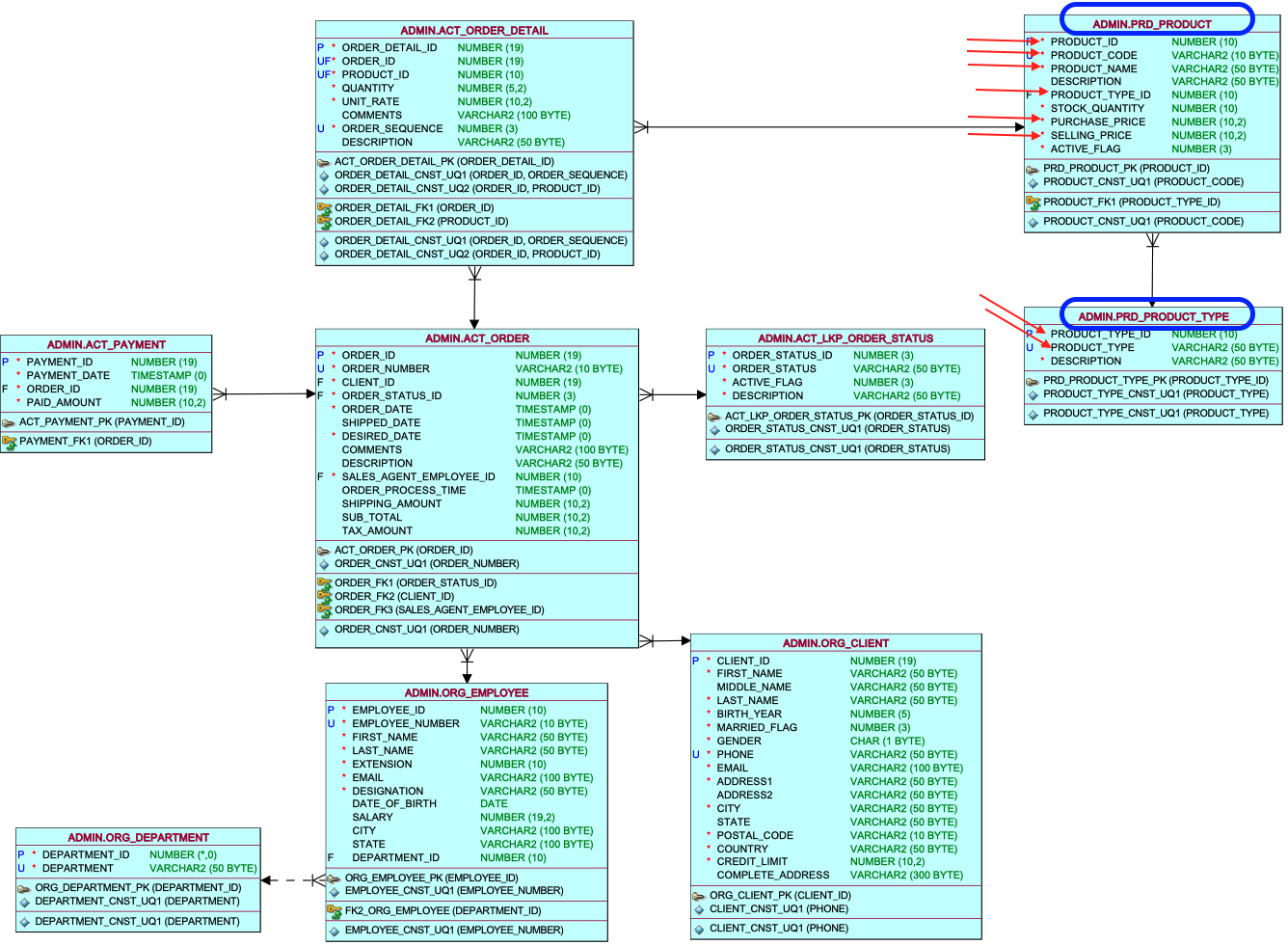
In this task, you will create a query involving two tables, named Products and ProductType, marked are the columns necessary for the query.
EXAMPLE 1 - RIGHT JOIN query
To achieve this, you need to execute a RIGHT JOIN between the product table and the product type detail table, utilizing the primary key and foreign key column, wherein the product type ID column serves as the joining column. In this scenario, the product table functions as the left table, and the product type detail table is considered the right table. The left table, which contains the essential primary business information, focuses on the product list as the primary requirement. At a secondary level, we seek prodcut type name, so we treat the product type as the secondary table, positioned on the right side of the join
SELECT prd_product.product_id, prd_product.product_code, prd_product.product_name,prd_product.selling_price, prd_product.purchase_price ,prd_product_type.product_type_id, prd_product_type.product_type FROM prd_product RIGHT OUTER JOIN prd_product_type ON prd_product_type.product_type_id = prd_product.product_type_id ORDER BY prd_product.product_id;EXAMPLE 1 - Query Data Mapping
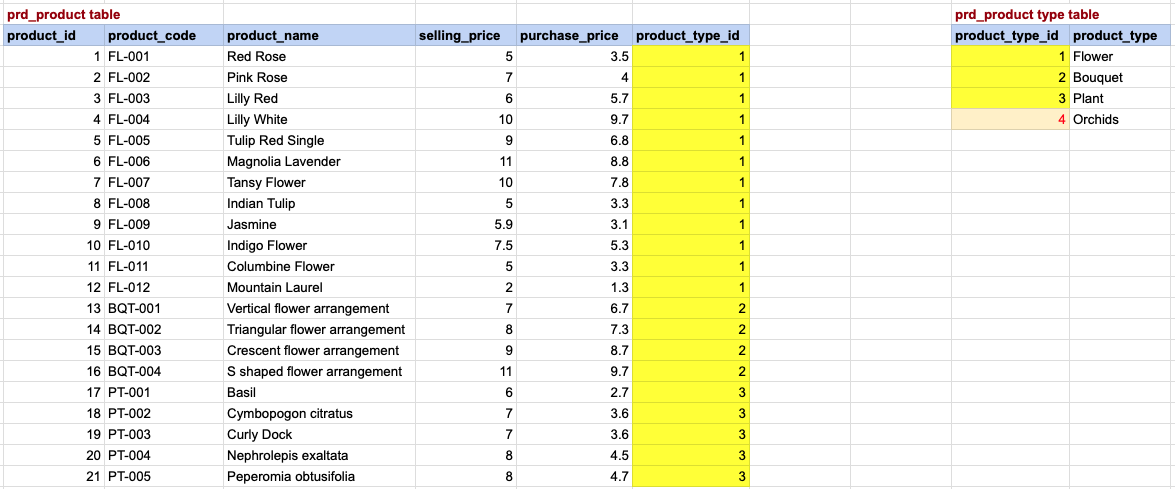
In this visual representation, a yellow background denotes a correspondence between the primary key and foreign key. Meanwhile, a light yellow background with red font on the right side signifies products lacking a corresponding row in the product type table. These product typess will be included in the final result, but with NULL values for product details. It's important to recognize that a RIGHT JOIN incorporates all rows from the right table, which, in this case, is the product type table.
EXAMPLE 1 - Final OUTput
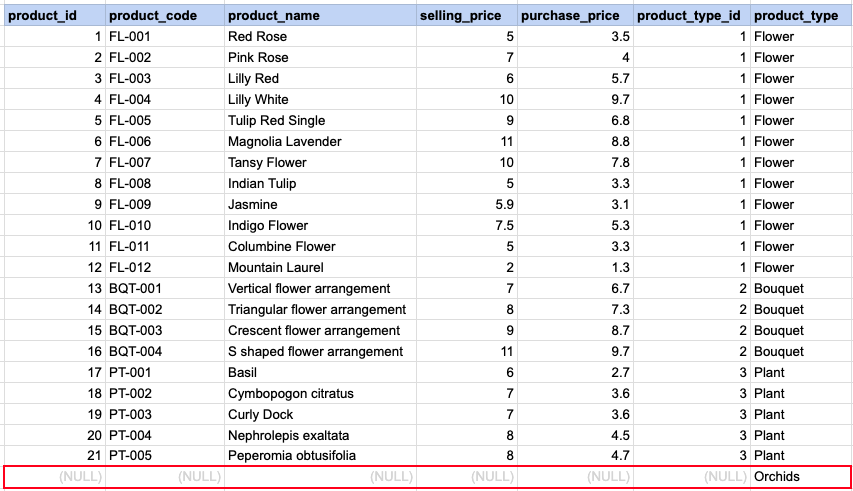
Please note that for rows in the left table that do not find a corresponding match in the right table, the values are marked as null.
Comments Not Found