
Microsoft SQL Server
Chapter 7 - DQL (Data Query Language)
DQL ASSIGNMENT1 - Store Management System
Objective:
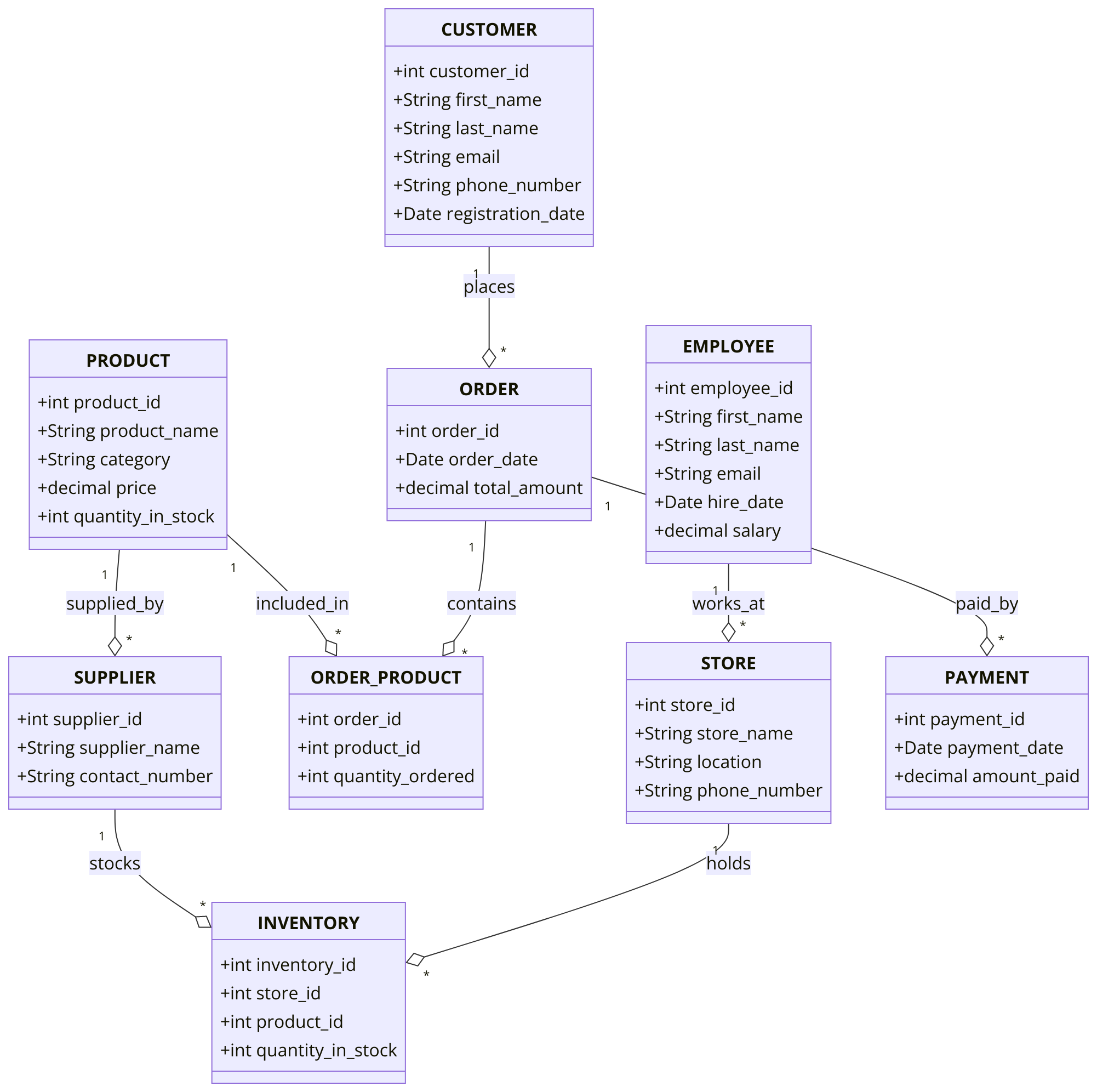
You are required to address a set of Data Query Language (DQL) tasks for a Store Management System using the tables provided. Each task focuses on different aspects of querying data from the system using SELECT statements with various conditions, functions, and joins.
1. SELECT Command
- Select all columns from the
PRODUCTtable. - Select the
product_name,price, andquantity_in_stockfrom thePRODUCTtable. - Select the
first_name,last_name, andemailfrom theCUSTOMERtable. - Select the
order_dateandtotal_amountfrom theORDERtable.
2. WHERE Command
- Select all customers where
registration_dateis after '2020-01-01'. - Select all products where
priceis greater than 50. - Select all orders where the
total_amountis greater than 100. - Select all products where
quantity_in_stockis less than 10.
3. ORDER BY Command
- Select all products and order them by
product_namein ascending order. - Select all customers and order them by
last_namein descending order. - Select all orders and order them by
order_datein ascending order. - Select all employees and order them by
hire_datein descending order.
4. TOP Command
- Select the top 5 customers from the
CUSTOMERtable based onregistration_date. - Select the top 10 products from the
PRODUCTtable ordered byprice. - Select the top 3 orders from the
ORDERtable ordered bytotal_amount. - Select the top 5 employees from the
EMPLOYEEtable based onsalary.
5. DISTINCT Command
- Select distinct
categoryfrom thePRODUCTtable. - Select distinct
last_namefrom theCUSTOMERtable. - Select distinct
supplier_namefrom theSUPPLIERtable. - Select distinct
store_namefrom theSTOREtable.
6. GROUP BY Command
- Group by
categoryfrom thePRODUCTtable and count the number of products per category. - Group by
last_namefrom theCUSTOMERtable and count the number of customers with the same last name. - Group by
store_idfrom theSTOREtable and calculate the totalquantity_in_stockof each store. - Group by
product_idfrom theORDER_PRODUCTtable and sum the totalquantity_orderedper product.
7. HAVING Command
- Group by
categoryfrom thePRODUCTtable and filter the results where the count of products is greater than 5. - Group by
last_namefrom theCUSTOMERtable and having more than 3 customers with the same last name. - Group by
store_idfrom theINVENTORYtable, having a totalquantity_in_stockgreater than 50. - Group by
employee_idfrom theEMPLOYEEtable and having a totalsalarygreater than 50000.
8. INNER JOIN Command
- Select all orders along with customer details using
INNER JOINbetween theORDERandCUSTOMERtables. - Select all products and their corresponding suppliers using
INNER JOINbetweenPRODUCTandSUPPLIER. - Select all payments and the corresponding order details using
INNER JOINbetweenPAYMENTandORDER. - Select all inventory records and their corresponding store details using
INNER JOINbetweenINVENTORYandSTORE.
9. LEFT JOIN Command
- Select all customers and their orders using
LEFT JOIN, including customers without orders. - Select all products and their suppliers using
LEFT JOIN, including products without suppliers. - Select all employees and the stores they work at using
LEFT JOIN, including employees without a store assignment. - Select all stores and their inventory using
LEFT JOIN, including stores with no inventory.
10. COUNT, SUM, AVG Command
- Count the total number of customers in the
CUSTOMERtable. - Count the number of distinct products in the
PRODUCTtable. - Calculate the sum of
total_amountfrom theORDERtable. - Calculate the average
salaryof employees in theEMPLOYEEtable.
11. CASE Command
- Select all products and use a
CASEstatement to show 'In Stock' ifquantity_in_stockis greater than 0, otherwise 'Out of Stock'. - Select all orders and use a
CASEstatement to show 'High Value' iftotal_amountis greater than 500, otherwise 'Standard'. - Use a
CASEstatement to categorize products by price: 'Expensive' ifpriceis greater than 100, 'Affordable' ifpriceis between 50 and 100, otherwise 'Cheap'. - Use a
CASEstatement in theORDER_PRODUCTtable to label products as 'Low Quantity' ifquantity_orderedis less than 5, otherwise 'High Quantity'.
12. EXISTS and NOT EXISTS Command
- Select all customers where an order exists in the
ORDERtable usingEXISTS. - Select all customers where no order exists in the
ORDERtable usingNOT EXISTS. - Select all products where a supplier exists in the
SUPPLIERtable usingEXISTS. - Select all employees where no payments were processed using
NOT EXISTS.
13. SUBQUERY Command
- Select all products whose
product_idis in the result of a subquery selectingproduct_idfrom theORDER_PRODUCTtable. - Select all customers where the
customer_idis in the result of a subquery selectingcustomer_idfrom theORDERtable wheretotal_amountis greater than 1000. - Select all stores where the
store_idis in the result of a subquery selectingstore_idfrom theINVENTORYtable wherequantity_in_stockis greater than 50. - Select all orders where the
order_idis in the result of a subquery selectingorder_idfrom thePAYMENTtable whereamount_paidis greater than 500.
14. RANK and DENSE_RANK Command
- Rank customers based on the total number of orders using
RANK(). - Use
DENSE_RANK()to rank products based on their price. - Rank employees based on their
salaryusingRANK(). - Use
DENSE_RANK()to rank stores based on their totalquantity_in_stock.
15. PIVOT and UNPIVOT
- Pivot the
ORDER_PRODUCTdata byorder_idandproduct_id. - Unpivot the sales data to show the
product_name,category, andpricefor each product. - Pivot the customer data by
registration_dateandfirst_name. - Unpivot store inventory data by
store_nameandquantity_in_stock.
16. UNION and UNION ALL Command
- Select all products from the
PRODUCTandINVENTORYtables usingUNION. - Select all customers from different regions using
UNION ALL. - Use
UNIONto combine high-value and standard orders. - Use
UNION ALLto select all products from two different categories.
17. COALESCE, ISNULL, NULLIF Command
- Select all products and use
COALESCEto replace nullcategoryvalues with 'Uncategorized'. - Use
ISNULLto replace nullemailvalues in theCUSTOMERtable with 'No Email Provided'. - Use
NULLIFto comparepriceanddiscountin thePRODUCTtable and returnNULLif they are the same. - Select all employees and use
COALESCEto replace nullphone_numbervalues with 'No Phone'.
18. STRING Functions
- Select all products'
product_namein uppercase using theUPPER()function. - Select all customers'
first_namein lowercase using theLOWER()function. - Use
CONCAT()to combine thefirst_nameandlast_nameof customers. - Select all products'
product_nameand find the length of the string usingLEN().
19. DATE Functions
- Select all customers and show their
registration_dateformatted as 'YYYY-MM-DD' usingFORMAT(). - Add 1 year to all
hire_datevalues in theEMPLOYEEtable usingDATEADD(). - Subtract 1 month from all
order_datevalues usingDATEADD(). - Select all orders and extract the year from the
order_dateusingYEAR().
20. NUMERIC Functions
- Select the
total_amountfrom theORDERtable and round it to the nearest integer usingROUND(). - Select all employees'
salaryand useCEILING()to round up their salary values. - Use
FLOOR()to round down the prices in thePRODUCTtable. - Select the maximum
total_amountfrom theORDERtable usingMAX().
21. CAST and CONVERT Command
- Select all products and cast the
product_idas a string usingCAST(). - Convert the
order_datein theORDERtable toVARCHARusingCONVERT(). - Cast the
pricein thePRODUCTtable toINT. - Convert the
payment_datefrom thePAYMENTtable toDATETIME.
22. JSON Select
- Select all JSON data from a column in the
INVENTORYtable if it stores any JSON details. - Select specific keys from a JSON column in the
AUDIT_LOGtable. - Parse a JSON column from the
ORDERtable to extract product details. - Use
JSON_VALUE()to select a specific key from aJSONcolumn in thePRODUCTtable.
23. CONCAT and CONCAT_WS Functions
- Use
CONCAT()to joinfirst_nameandlast_namewith a space in between in theCUSTOMERtable. - Use
CONCAT_WS()to combine thestore_nameandlocationwith a comma in theSTOREtable. - Use
CONCAT()to combine theproduct_nameandcategoryfrom thePRODUCTtable. - Use
CONCAT_WS()to combinefirst_name,last_name, andemailfrom theEMPLOYEEtable.
24. LIKE and NOT LIKE
- Select products where the
product_namecontains 'Laptop' usingLIKE. - Select customers where
emailends with 'gmail.com' usingLIKE. - Select products where
categorydoes not start with 'E' usingNOT LIKE. - Select stores where
store_namecontains 'Main' usingLIKE.
25. EXISTS and NOT EXISTS
- Select all products where orders exist in the
ORDER_PRODUCTtable usingEXISTS. - Select all customers where no orders exist using
NOT EXISTS. - Select all stores where inventory exists in the
INVENTORYtable usingEXISTS. - Select all suppliers where no products exist using
NOT EXISTS.
26. JOIN Commands
- Select all customers and their corresponding orders using
INNER JOINbetweenCUSTOMERandORDER. - Select all products and their corresponding suppliers using
INNER JOINbetweenPRODUCTandSUPPLIER. - Select all employees and the stores they work at using
LEFT JOINbetweenEMPLOYEEandSTORE. - Select all orders and their corresponding payments using
INNER JOINbetweenORDERandPAYMENT.
27. BETWEEN Command
- Select all products where the
priceis between 50 and 100. - Select all orders where the
total_amountis between 500 and 1000. - Select all employees where the
hire_dateis between '2015-01-01' and '2020-01-01'. - Select all payments where the
amount_paidis between 100 and 500.
28. IN and NOT IN Command
- Select all products where the
categoryis in ('Electronics', 'Furniture', 'Clothing'). - Select all customers where the
customer_idis in (101, 202, 303). - Select all orders where the
order_idis not in (1, 2, 3). - Select all stores where the
locationis in ('Downtown', 'Suburb', 'Mall').
29. UNION Command
- Select products from the
PRODUCTandINVENTORYtables usingUNION. - Select customers from different regions using
UNION ALL. - Use
UNIONto combine orders from two different years. - Use
UNION ALLto select all suppliers from two different locations.
30. ARRAY Command
- Select all
categoryand convert it into an array usingSTRING_AGG(). - Use
UNSTRING()to expand arrays from thePRODUCTtable. - Convert product names into an array using
STRING_AGG()in theORDER_PRODUCTtable. - Use
ARRAYfunctions to select and manipulate data from theSTOREtable.
GOOD LUCK WITH YOUR ASSIGNMENT!!!
Don't forget to contact us if you need any further assistance with your assignments, and most importantly, for a manual review and approval of your work.
Sample ERD Data Model for Store Management System
Comments Not Found