
Microsoft SQL Server
LIKE Operator
In Microsoft SQL Server, the LIKE operator is used in the WHERE clause to search for a specific pattern in a column. It is particularly useful when you want to find rows where a column’s value partially matches a pattern rather than an exact match. For beginners, understanding how to use LIKE is essential when working with string data that doesn’t follow a strict structure, such as names, product descriptions, or other textual information. The LIKE operator often works with wildcard characters such as % (for any sequence of characters) and _ (for a single character).
Below is a detailed explanation of how to use the LIKE operator with examples and best practices.
1. Basic Syntax of LIKE
The basic syntax of LIKE is as follows:
SELECT column_name
FROM table_name
WHERE column_name LIKE pattern;
- Replace
column_namewith the column you want to filter. - Replace
table_namewith the actual table name. - Replace
patternwith the string pattern you want to search for.
Example:
SELECT ProductName
FROM Products
WHERE ProductName LIKE 'L%';
This query retrieves all products whose names start with the letter "L".
2. Using % for Any Sequence of Characters
The % wildcard represents any sequence of characters (including no characters). It is used to find rows where part of the string matches.
SELECT CustomerName
FROM Customers
WHERE CustomerName LIKE '%son';
This query retrieves all customers whose names end with "son", such as "Johnson" or "Emerson".
3. Using _ for a Single Character
The _ wildcard represents a single character. It is used to search for rows where a specific character is unknown or can vary.
SELECT ProductName
FROM Products
WHERE ProductName LIKE 'T_shirt';
This query retrieves all products with names like "T-shirt" or "T1shirt", where the _ stands for any single character.
4. Combining LIKE with AND or OR
You can combine the LIKE operator with other conditions using AND or OR to filter data based on multiple patterns.
SELECT ProductName
FROM Products
WHERE ProductName LIKE '%Laptop%'
OR ProductName LIKE '%Tablet%';
This query retrieves all products whose names contain either "Laptop" or "Tablet".
5. Using NOT LIKE
You can use the NOT LIKE operator to filter out rows that match a specific pattern.
SELECT CustomerName
FROM Customers
WHERE CustomerName NOT LIKE 'A%';
This query retrieves all customers whose names do not start with the letter "A".
6. Best Practices for Using LIKE
Use
%for Flexible Pattern Matching – The%wildcard is highly versatile and should be used when you want to match any number of characters. For example, searching for names that start with "J":SELECT * FROM Customers WHERE CustomerName LIKE 'J%';Limit the Use of Leading
%for Performance – Using a leading%in your pattern (e.g.,%pattern) can slow down query performance, especially on large tables. This is because SQL Server cannot efficiently use indexes with a leading%.Use
_for Precise Single Character Matching – The_wildcard is useful when you need to match a single unknown character. For instance, finding products like "P100" or "P200":SELECT * FROM Products WHERE ProductCode LIKE 'P_00';Consider Case Sensitivity – SQL Server’s
LIKEoperator is usually case-insensitive, but this depends on the collation settings of your database. If needed, you can adjust the query to be case-sensitive.SELECT * FROM Customers WHERE CustomerName COLLATE Latin1_General_CS_AS LIKE 'John%';Avoid Overusing
LIKEon Large Data Sets – WhileLIKEis useful, it may slow down performance when applied to large datasets, especially with complex patterns. When possible, use indexes and limit the size of the dataset.
By mastering the LIKE operator, you can create flexible and powerful queries that search for patterns within your data, making it easier to retrieve relevant results from SQL Server databases.
To gain complete access, login with gmail or outlook, no need of signup, click here

Test code
In Microsoft SQL Server, to retrieve entries for clients with last names that begin with 'Me%', where '%' signifies the possibility of zero or more characters following 'Me', you can use the following query:
SELECT *
FROM org_client
WHERE last_name LIKE 'Me%';In Microsoft SQL Server, to fetch records for clients whose first names conclude with '%ne', where '%' signifies the possibility of zero or more characters preceding 'ne', you can use the following query:
SELECT *
FROM org_client
WHERE first_name LIKE '%ne';In Microsoft SQL Server, to fetch records for clients with the second character in their last name being 'a', you can use the following query:
SELECT *
FROM org_client
WHERE last_name LIKE '_a%';In Microsoft SQL Server, to fetch records for clients with last names that include 'an' at any position. To ensure compatibility and avoid potential case-sensitive database issues, we will convert the entire last name column to lowercase before making the comparison.
SELECT *
FROM org_client
WHERE LOWER(last_name) LIKE '%an%';In Microsoft SQL Server, to fetch records for clients whose last names have 'i' as the second character and 's' as the last character, you can use the following query:
SELECT *
FROM org_client
WHERE last_name LIKE '_i%s';In Microsoft SQL Server, to retrieve entries for clients with first names that begin with 'D' and end with 'd', you can use the following query:
SELECT *
FROM org_client
WHERE first_name LIKE 'D%d';Example 1:
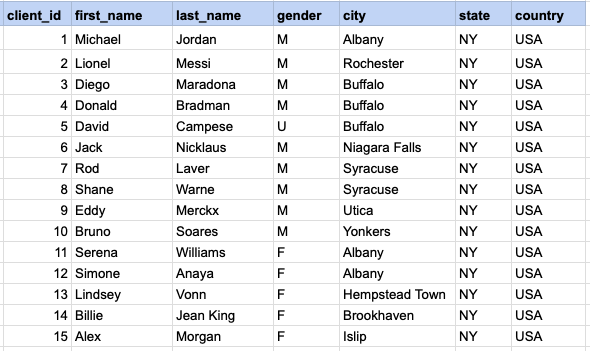
Let's delve into the process of extracting data from a specified table using the SQL LIKE operator. Retrieve entries for clients with last names that begin with 'Me%', where '%' signifies the possibility of zero or more characters following 'Me'.
Example 1 - Raw data from client table
Example 1 - Query
SELECT * FROM org_client WHERE last_name LIKE 'Me%';Example 1 - Query data mapping
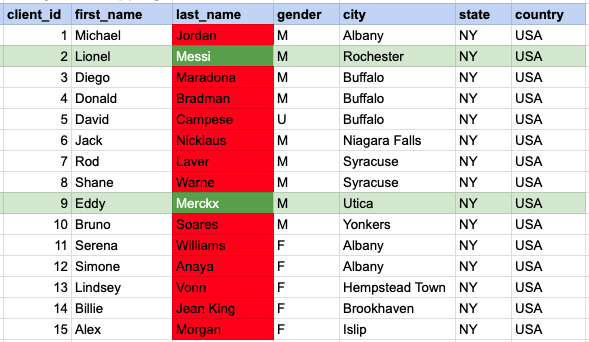
In the provided image, the green color signifies the data that has been selected or satisfies the conditions specified in our query. Data points in red indicate information that does not meet the criteria set by the query.
Example 1 - Query Output

Example 2:
Fetch records for clients whose first names conclude with '%ne'.
Example 2 - Query
SELECT * FROM org_client WHERE first_name LIKE '%ne';Example 2 - Query data mapping
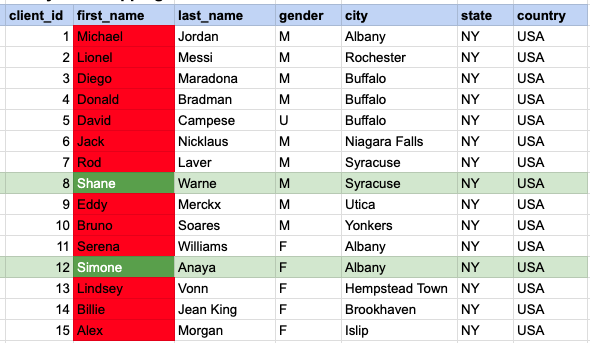
In the provided image, the green color signifies the data that has been selected or satisfies the conditions specified in our query. Data points in red indicate information that does not meet the criteria set by the query.
Example 2 - Query Output

Example 3:
Fetch records for clients with the second character in their last name being 'a'.
Example 3 - Query
SELECT * FROM org_client WHERE last_name LIKE '_a%';Example 3 - Query data mapping
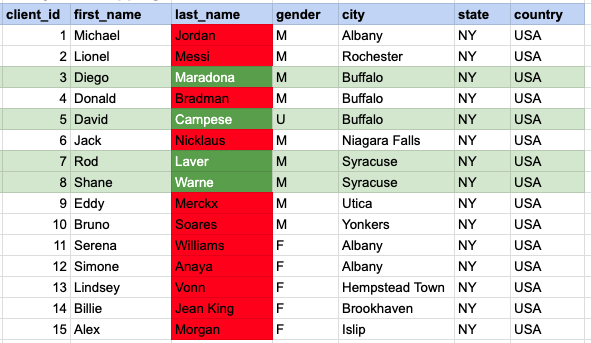
In the provided image, the green color signifies the data that has been selected or satisfies the conditions specified in our query. Data points in red indicate information that does not meet the criteria set by the query.
Example 3 - Query Output

Example 4:
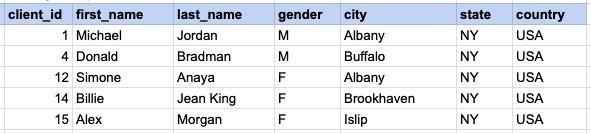
Fetch records for clients with last names that include 'an' at any position. To ensure compatibility and avoid potential case-sensitive database issues, we will convert the entire last name column to lowercase before making the comparison.
Example 4 - Query
SELECT * FROM org_client WHERE lower(last_name) LIKE '%an%';Example 4 - Query data mapping
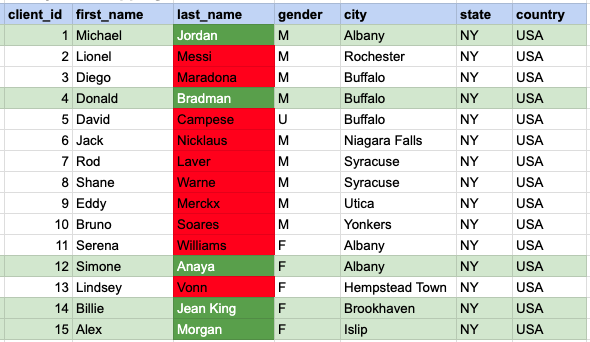
In the provided image, the green color signifies the data that has been selected or satisfies the conditions specified in our query. Data points in red indicate information that does not meet the criteria set by the query.
Example 4 - Query Output
Example 5:
Fetch records for clients whose last names have 'i' as the second character and 's' as the last character.
Example 5 - Query
SELECT * FROM org_client WHERE last_name LIKE '_i%s';Example 5 - Query data mapping
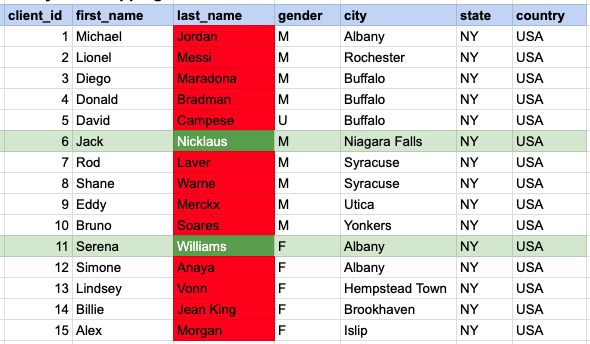
In the provided image, the green color signifies the data that has been selected or satisfies the conditions specified in our query. Data points in red indicate information that does not meet the criteria set by the query.
Example 5 - Query Output

Example 6:
Retrieve entries for clients with first names that begin with 'D' and end with 'd'.
Example 6 - Query
SELECT * FROM org_client WHERE first_name LIKE 'D%d';Example 6 - Query data mapping
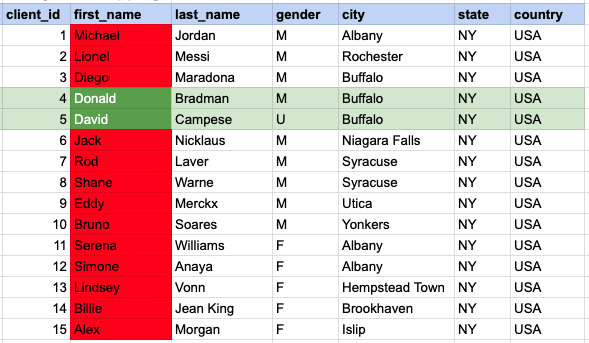
In the provided image, the green color signifies the data that has been selected or satisfies the conditions specified in our query. Data points in red indicate information that does not meet the criteria set by the query.
Example 6 - Query Output

Comments Not Found